Friend Gregory and I were chatting about whether or not he should be updating rows in his BigQuery database and the two-table, maybe I will only make changes to rows less than 90 days old approach he was using.
Sales orders from his business system were flowing into BigQuery for analysts and staff to use. The problem was that a sales order is not a static thing. It changes, frequently. Customers add and remove items and change quantities. When the order ships, the shipping status changes as the package crawls across the landscape. The staff really wanted to get only the latest order information.
He’d designed an approach with two tables. One for older orders that probably wouldn’t change, and a second for newer orders that might change. UPDATES work faster on the smaller new order table, helping keep expenses down. But the design seemed too complex. Two tables instead of one. Automation to move rows from new to old. Updates might not come in as expected. There wasn’t any history of changes. And analysts had to remember to join two tables.
It’s very common to wrestle with database design for an analytic database. If you’re working on BigQuery you need more help. BigQuery is different. It’s designed for a different approach than you’d use for either a SQL Server transaction database (no indexes!) or a traditional data warehouse product (don’t use a star schema. Just don’t.)
What to do?
Take a BigQuery approach
You want to be confident that your design is a good one. Today, and in the future. Being able to explain why you did the things you did is extremely useful. And having it work well is best of all!
Here’s what I suggested for Gregory’s order table design need.
- Store all the order updates in one table and never update rows. When you update history you’re throwing it away. Today the need is to see the latest order, but tomorrow the need might be to review change rates to shipping status in a contract negotiation. Since you can’t predict the future, don’t throw away the details.
- Partition the table by order date. Most queries against the order table are going to involve a date. Recent orders. This month vs Last Month. When you query against partitions your queries can be 100s of times faster and less expensive. And it’s straightforward to implement data storage policies by just dropping partitions that are older than your keep-until date, too.
- Create a materialized view for the latest orders that includes the latest order date. Materialized views are new to BigQuery in 2020 and exceptionally useful for this use case. You know how to create a view of the latest orders – SELECT orderNumber, MAX(orderDate) but if you run that query against the orders table, BigQuery is going to scan the whole table. A materialized view is a special table that BigQuery maintains with your query. Whenever a new row is added to the table, the results of the view are updated. The materialized table is a tiny fraction of the size of the real table and queries are very fast and cheap. Since our view will include the latest order date it will work with the order date partition to speed up the most critical queries.
- Use a RECORD column to store item details for the order. This lets staff and analysts avoid joining orders table to details table like a traditional transactional SQL database does.
End to End Example
For me, a complete working example has a way of really making things clear. How about just five steps, with SQL and screenshots?
- Make an orders file including order items
- Create and load a date-partitioned orders table
- Create the materialized view
- Show how to use the view to query the orders table
- Add a new order transaction and check that the view is updated
Order file in JSON
First thing was to build an imaginary set of data. One of the wonderful things about BigQuery is that it can natively turn JSON files into SQL-queryable tables. I used Visual Notepad (ha!) to build a JSON file with about 20 order transactions with their items. Lines in the file looked like these:
{"orderDate": "2020-10-01", "orderNumber": "1001", "itemsOrdered": [{"itemNum": "101", "itemQty": "2"}, {"itemNum": "102", "itemQty": "2"}, {"itemNum": "101", "itemQty": "2"}]}
{"orderDate": "2020-10-01", "orderNumber": "1002", "itemsOrdered": [{"itemNum": "103", "itemQty": "2"}, {"itemNum": "104", "itemQty": "2"}, {"itemNum": "102", "itemQty": "2"}]}
{"orderDate": "2020-10-01", "orderNumber": "1003", "itemsOrdered": [{"itemNum": "105", "itemQty": "2"}, {"itemNum": "106", "itemQty": "2"}, {"itemNum": "103", "itemQty": "2"}]}
Create and Load a Date-partitioned table
In a data warehouse you’re going to need to load data from many, many different data sources. CSV. More CSV. Still more CSV. AVRO. Excel. JSON. It never ends. That’s why I love the integration between create and load in BigQuery.
In the console, I created the table and uploaded the JSON from my PC ‘s filesystem. If I was integrating with another system or loading a large table I’d almost certainly use Cloud Storage or a streaming input, of course.
Here’s my console screenshot:
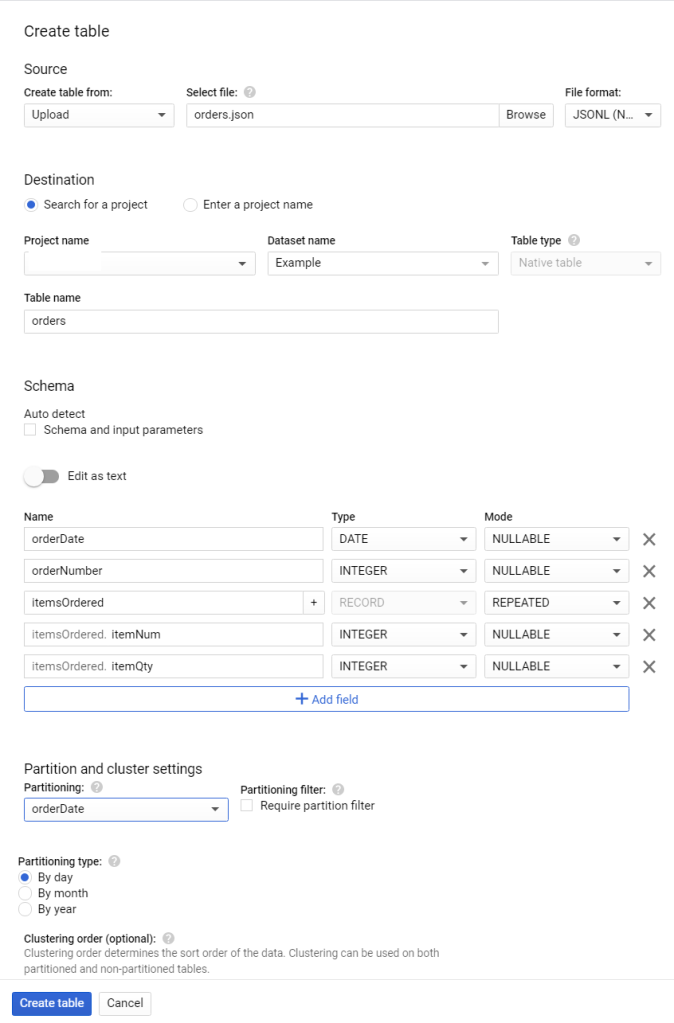
Check the Partition and cluster settings to see how I picked the orderDate field to partition on.
A quick query against the table show that my JSON has turned into nicely organized BigQuery SQL data.

Create the Materialized View
I use a lot of views in my analysis work. I write queries and save them as views, to keep the SQL out of DataStudio. Most common? Views like ORDERS_THIS_MONTH so I don’t accidentally run queries against a whole table. Saves money and time.
A materialized view is created with just a bit of data definition language. We need a view for the most recent update date of each order number. That’s easy!
CREATE MATERIALIZED VIEWExample.Example.newestorderAS SELECT orderNumber, MAX(orderDate) AS maxDate FROMExample.Example.ordersGROUP BY orderNumber;
Take a look at the console. There’s a new icon for the view, and if you look at the details you see the defining query.
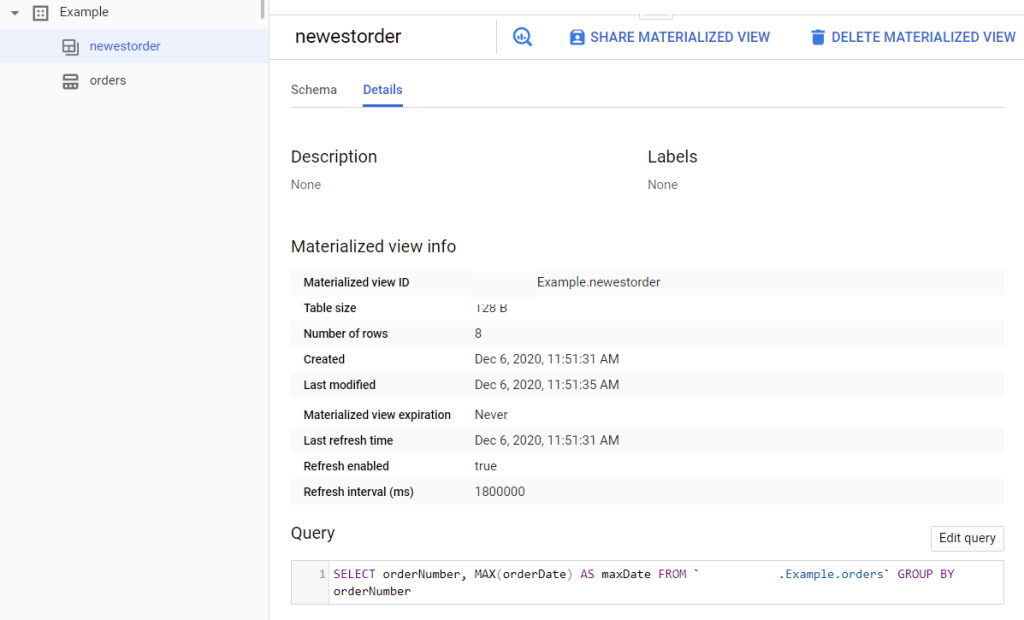
Three special detail fields refer to Refresh Time. BigQuery keeps the contents of materialized views up-to-date for you. Unless you specify something different changes to the orders table will appear in the view no later than – wow how much time is 1800000 milliseconds – oh, five minutes. You can shorten that down to one minute if you really need to.
What do we get if we query the view?
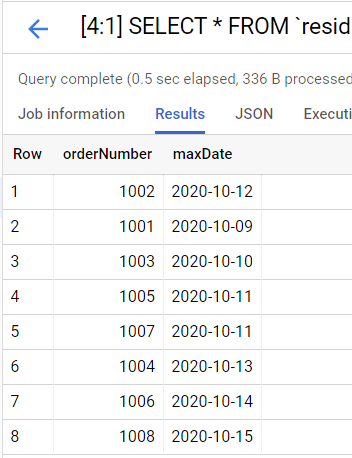
Perfect. Now we know the date for the most recent update to each order number. You know, I probably should have named the second column “Most_recent_order_update_date.” Oh well, next time.
Use the view to query the orders table
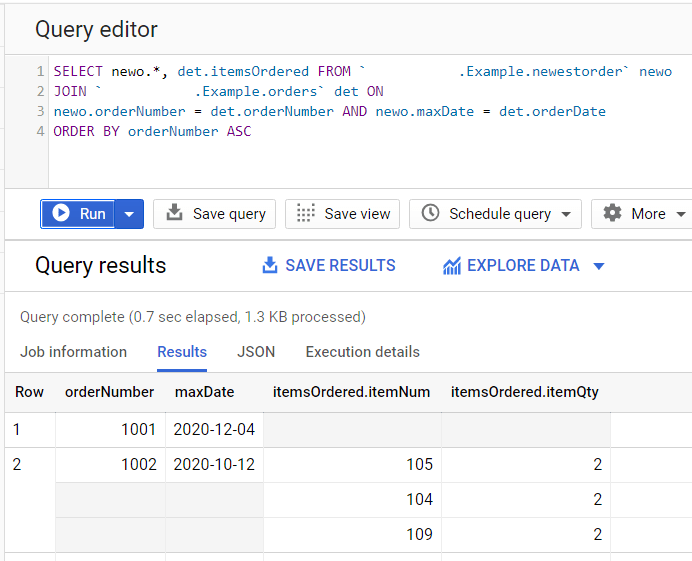
Now let’s look up the order details for the most recent order number by JOINing the the view and the base table.
SELECT newo.*, det.itemsOrdered FROMExample.Example.newestordernewo JOINExample.Example.ordersdet ON newo.orderNumber = det.orderNumber AND newo.maxDate = det.orderDate
Here’s some of the results.

Add a new order transaction and check that the view is updated
Let’s update an order to remove all the items. If we UPDATED, we wouldn’t know what items were in the order before. But now we can just look at history!
INSERT INTO Example.Example.orders (orderNumber, orderDate) VALUES( 1001, "2020-12-04");
BigQuery automatically updates the view with the new order date.
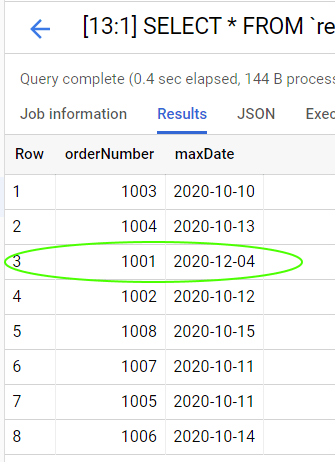
And the join between view and order table reflects the newest record.
Whenever we need the order history, we can still retrieve it from the orders table.
The right mindset pays dividends
Almost every database and datawarehouse you use will take a different approach to solving business problems. Older transactional SQL databases were designed to support business transactions on physical servers. The first generations of data warehouses relied on a star-schema database design to enable fast queries using pre-defined relationships – and again on physical severs. BigQuery is designed for a cloud-first environment. It’s well worth your time to learn how to take advantage of each system’s strengths!
Get new content delivered directly to your email. Unsubscribe anytime. I don’t share your email address with anyone.
 Useful data analysis techniques and results